Windows VM Install
All the options used are for optimal performance and compatibility. I got this information from the official Proxmox wiki
Upload the needed ISOs
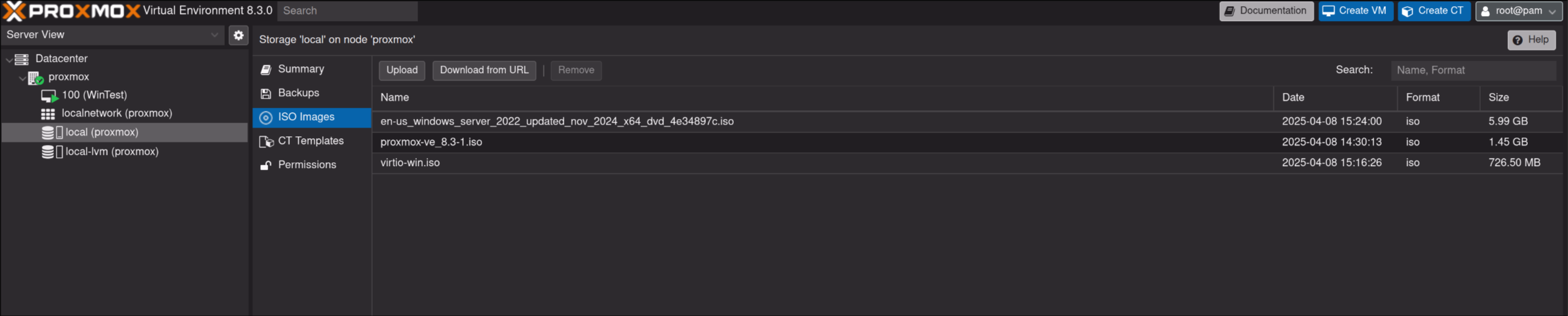
1. Choose the local storage and choose ISO. Then choose to upload your ISO.
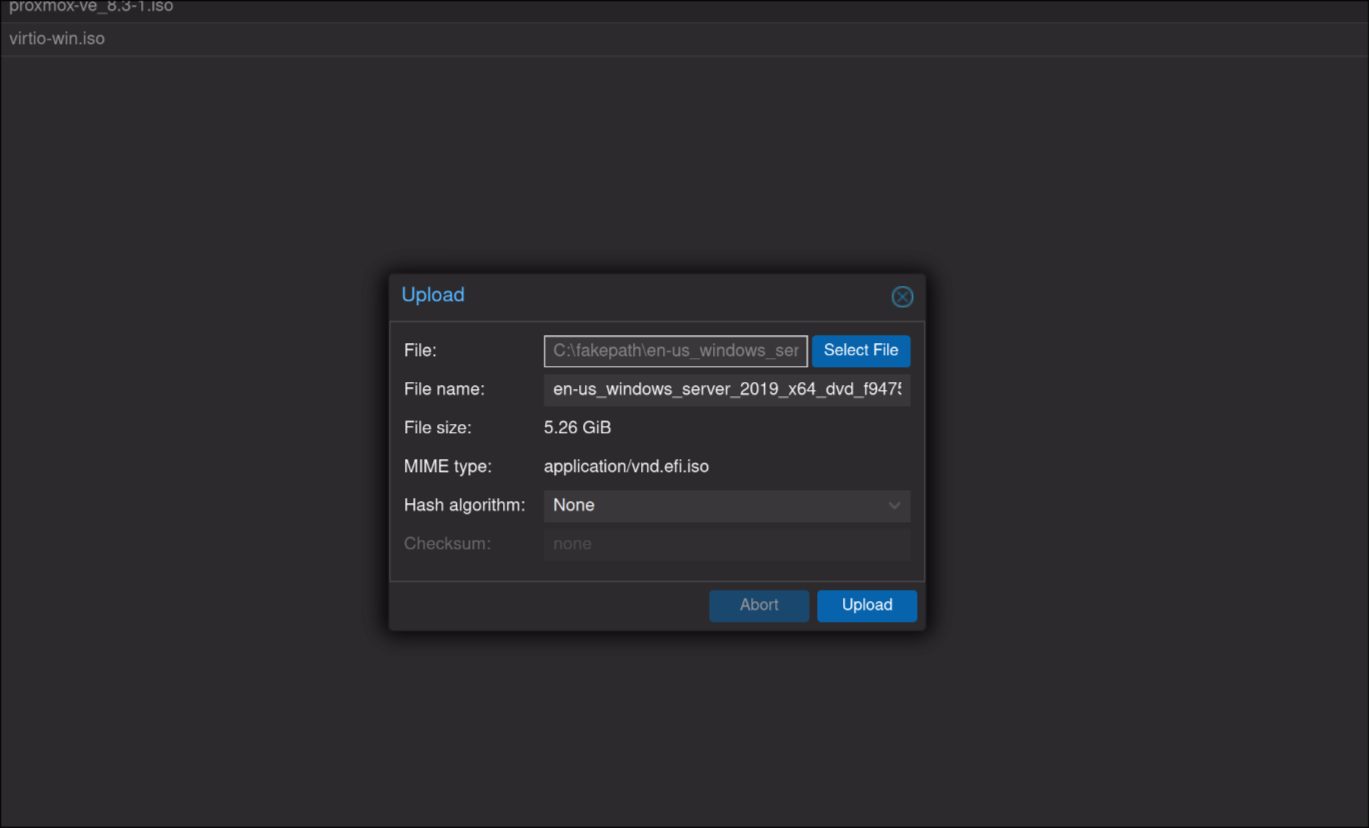
2. Browse and pick the ISO you want to upload and wait for it to upload
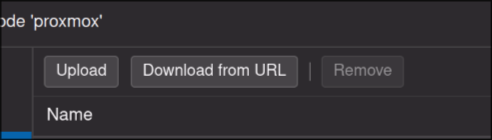
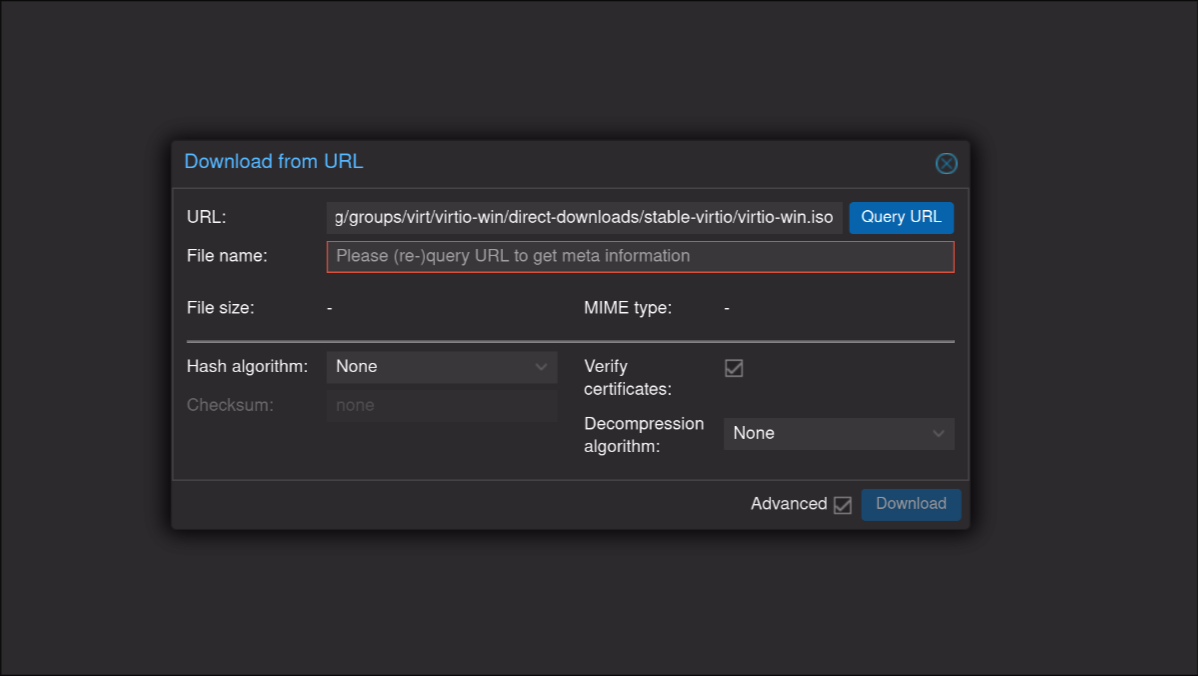
3. Now choose to Download from URL
4. In the URL paste link below and choose Query URL. Then choose Download and wait for it to finish. These are drivers for windows.
https://fedorapeople.org/groups/virt/virtio-win/direct-downloads/stable-virtio/virtio-win.iso
Create the Windows VM
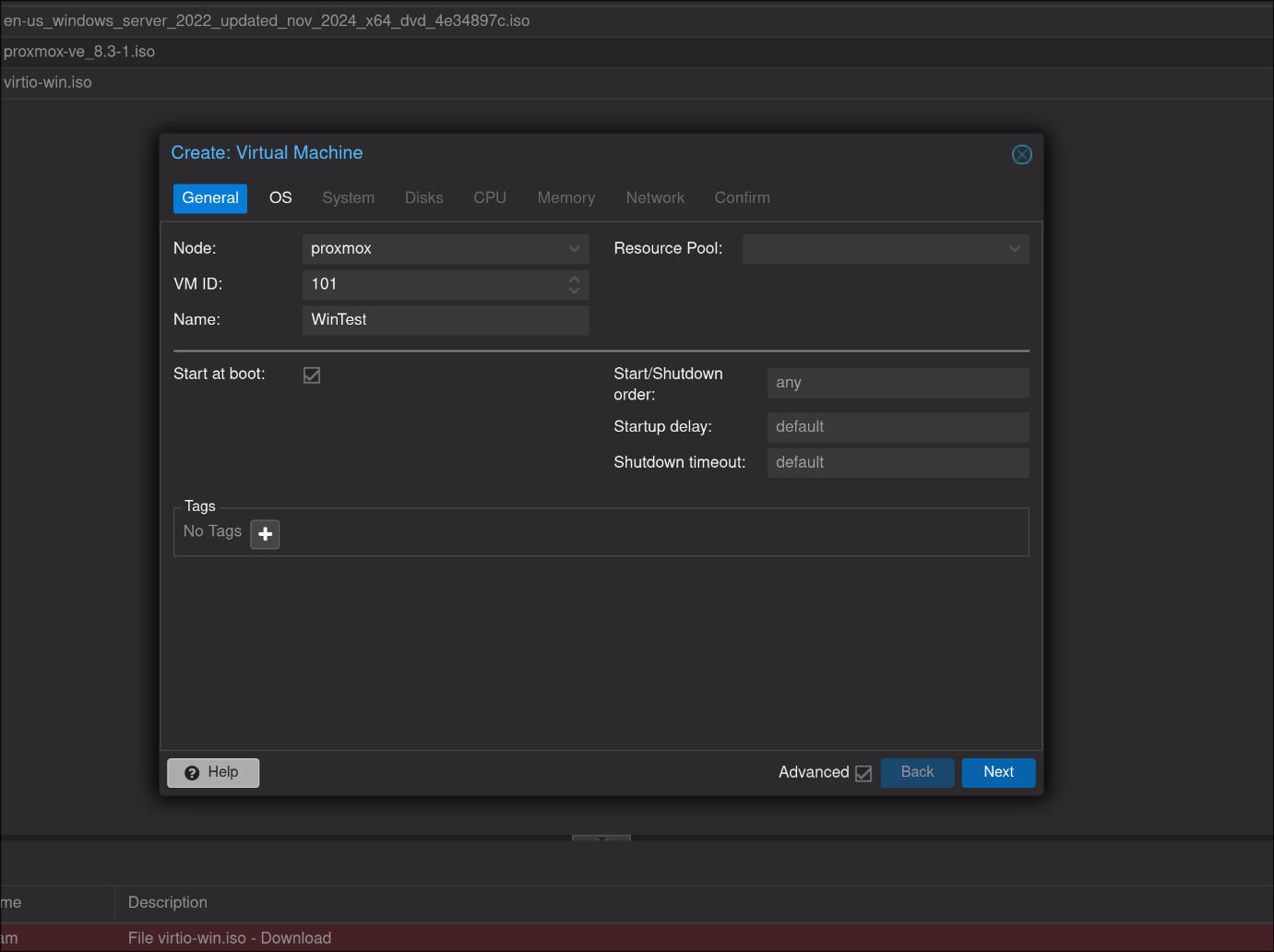
1. Choose Create new VM in the top right. I recommend checking the Advanced option and checking Start on boot. Click next after the general info is filled out.
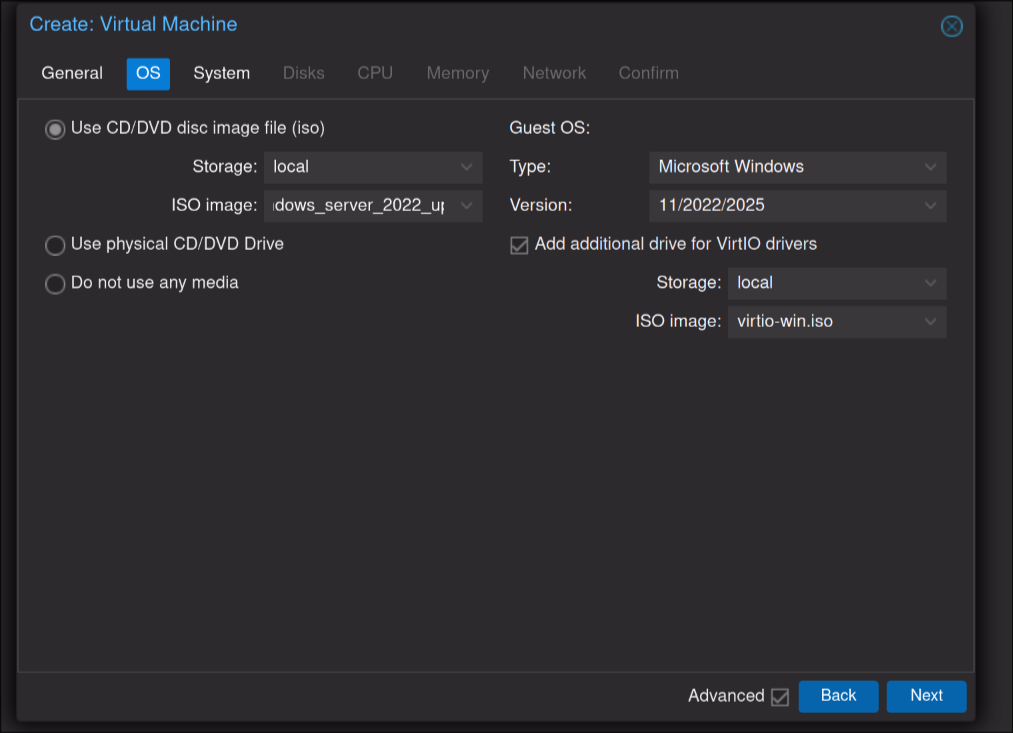
2. Choose the ISO to boot with on the left and change the guest type on the right to match it. Make sure to check the Add additional drive for VirtIO drivers and choose the virtio-win.iso. Click Next
3. Choose the drives for the EFI and TPM and then make sure the rest of the settings match and click next.

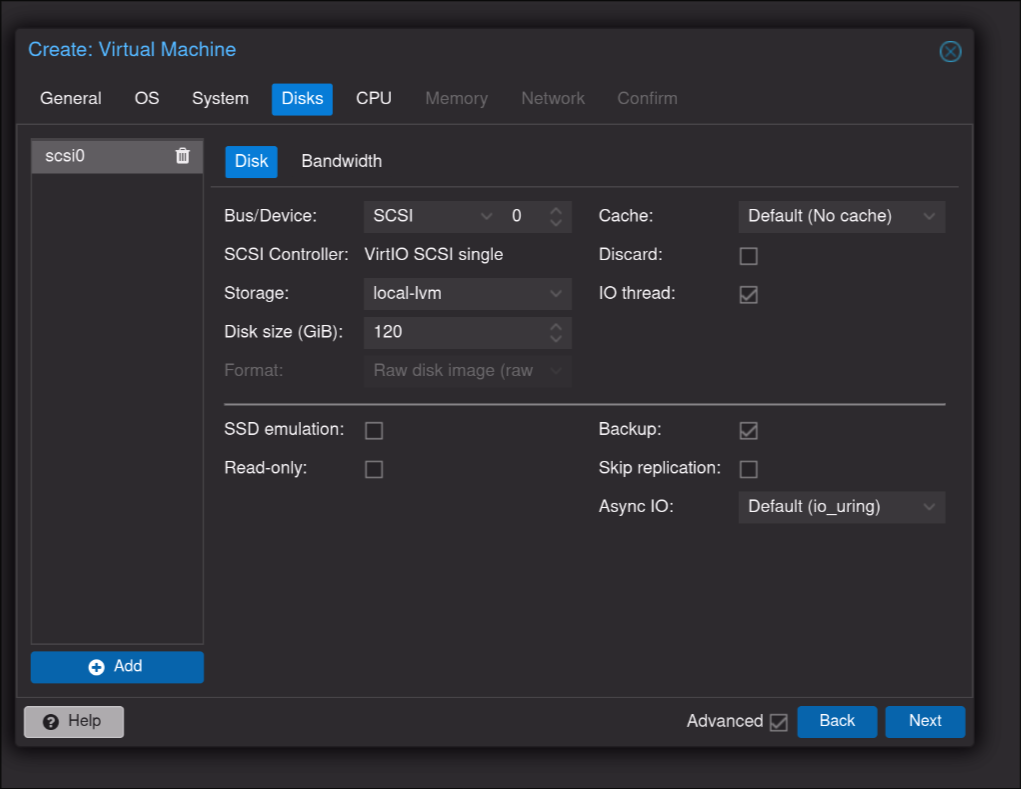
4. Change the Disk Size to the size you need and make sure to check IO thread and make sure the rest matches.
5. Choose the number of cores you will need. The rest of the settings are unchanged.
I recommend choosing host for the Type for most installs as a single node VM.
If you plan on needing to use it live migration or using it on multiple nodes I would choose something like x86-64-v2-AES. Documentation and Details Here under the CPU Type section.
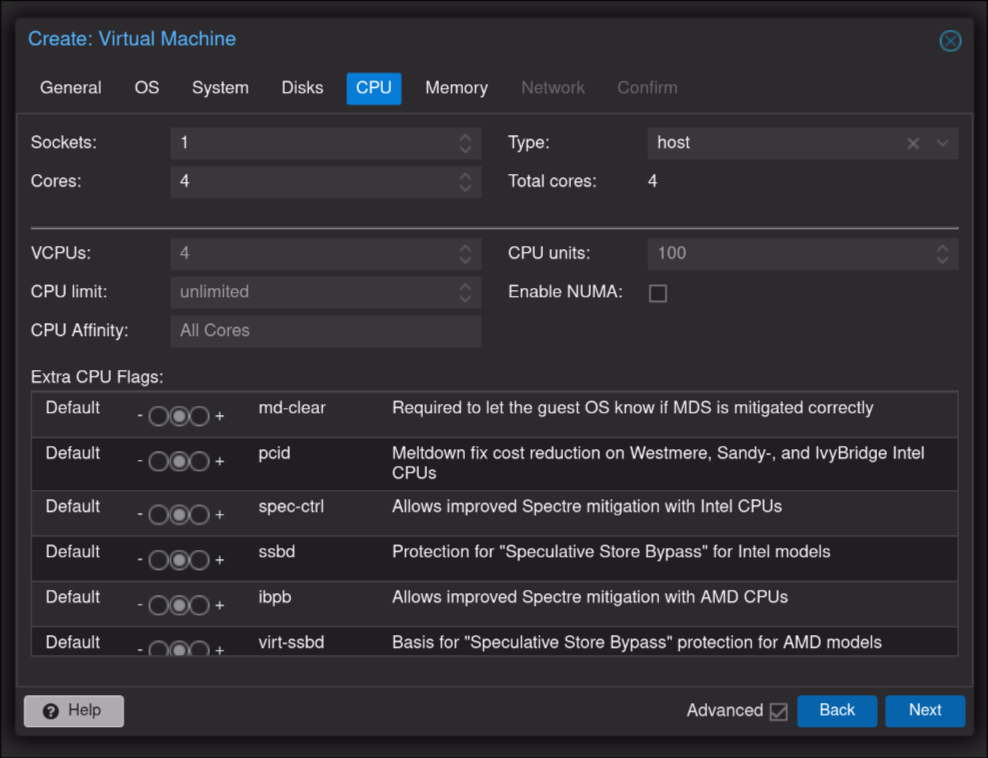
6. Choose Memory
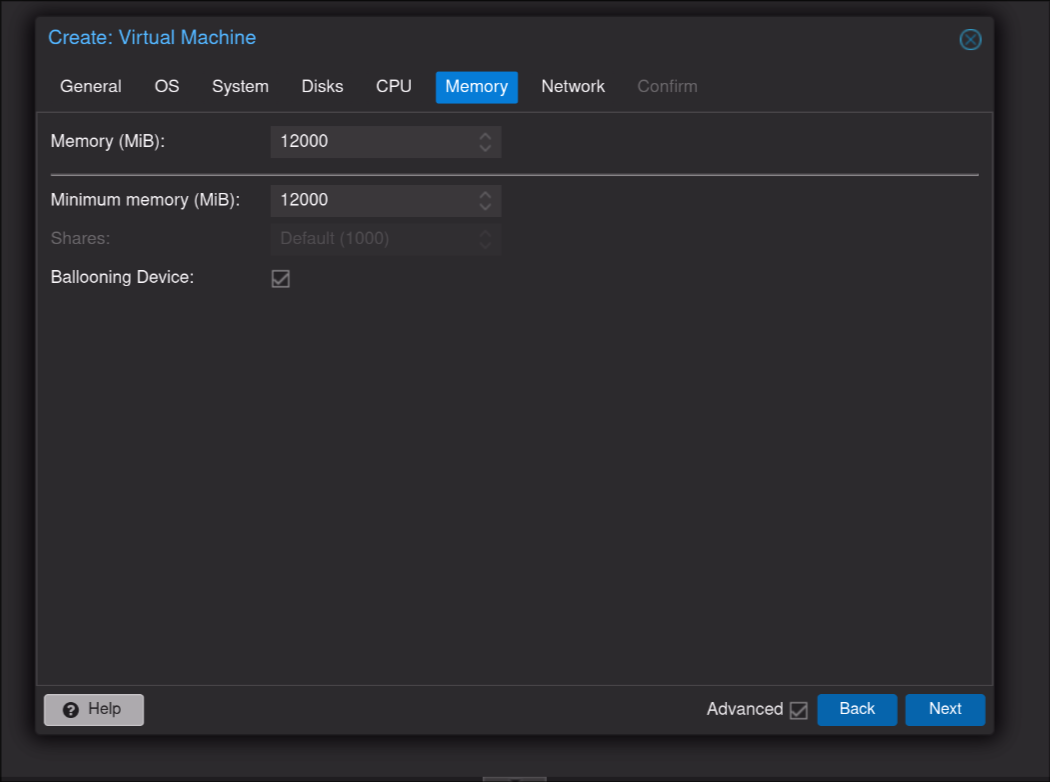
7. Pick a network interface and VirtIO as the model
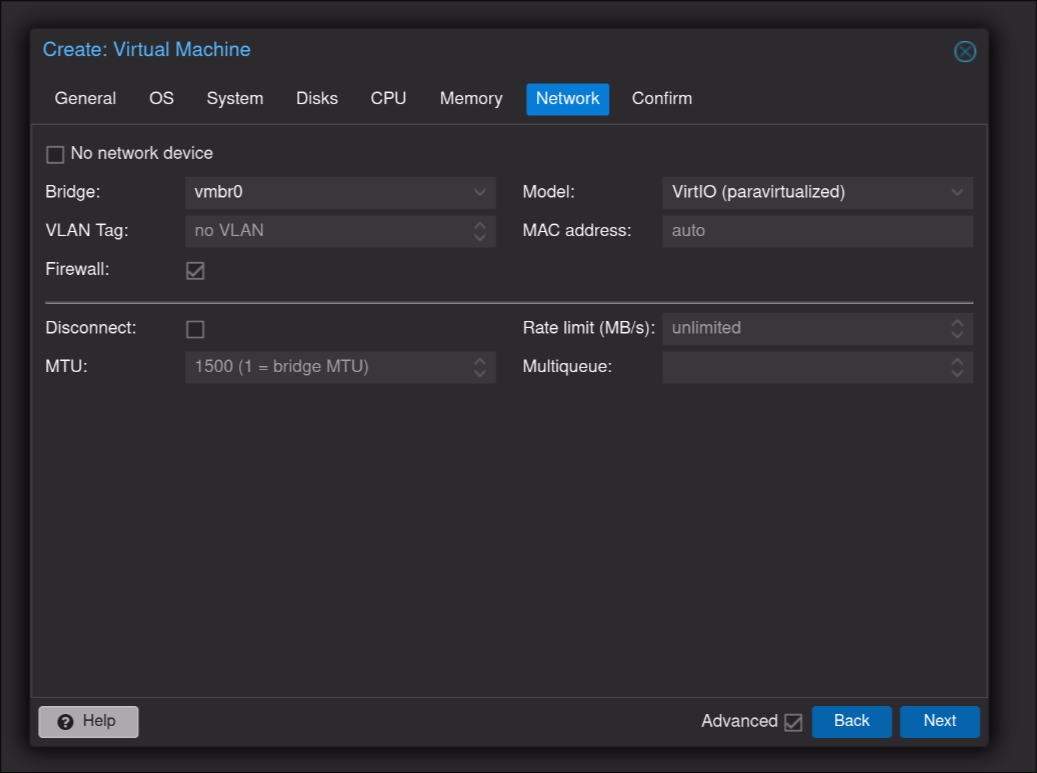
8. Finish
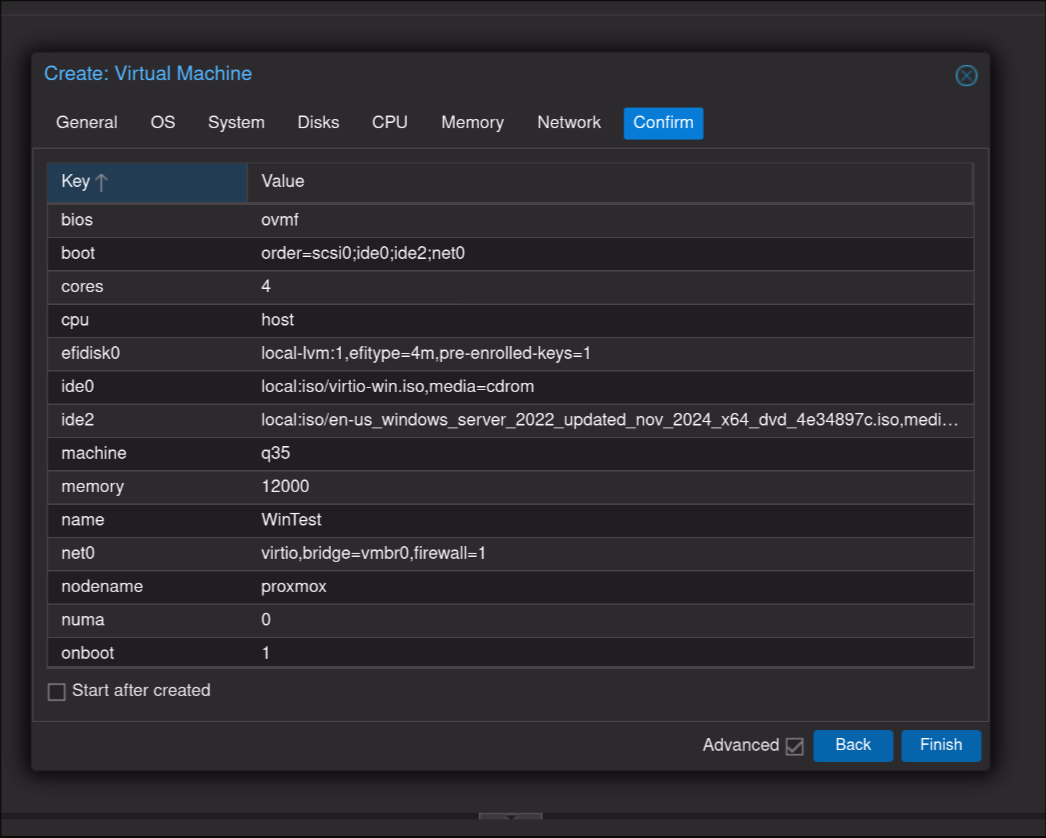
9. Choose the VM in the left and then Click the little arrow next to console and choose NoVNC to see the VM
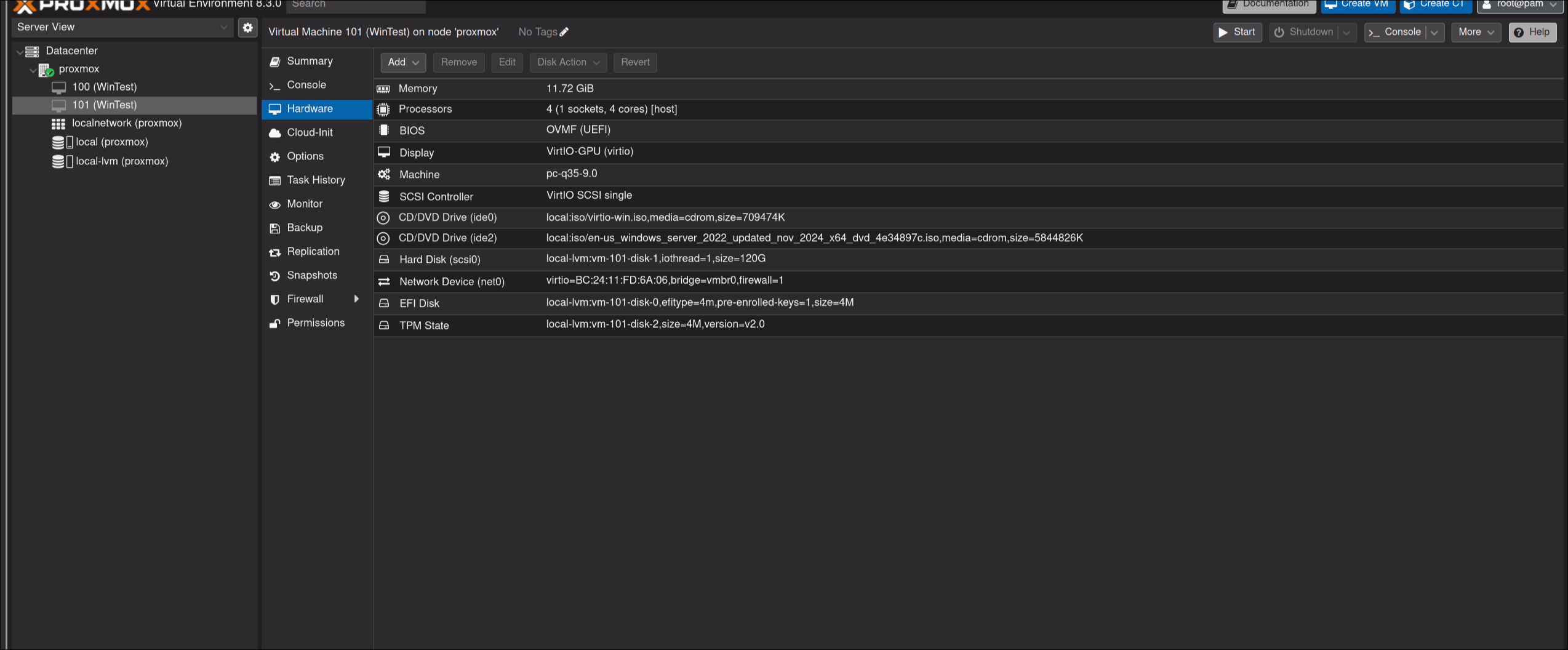
10. Start the VM. If it does not load the windows boot media hard restart the VM and spam the Enter key until it boots to windows.
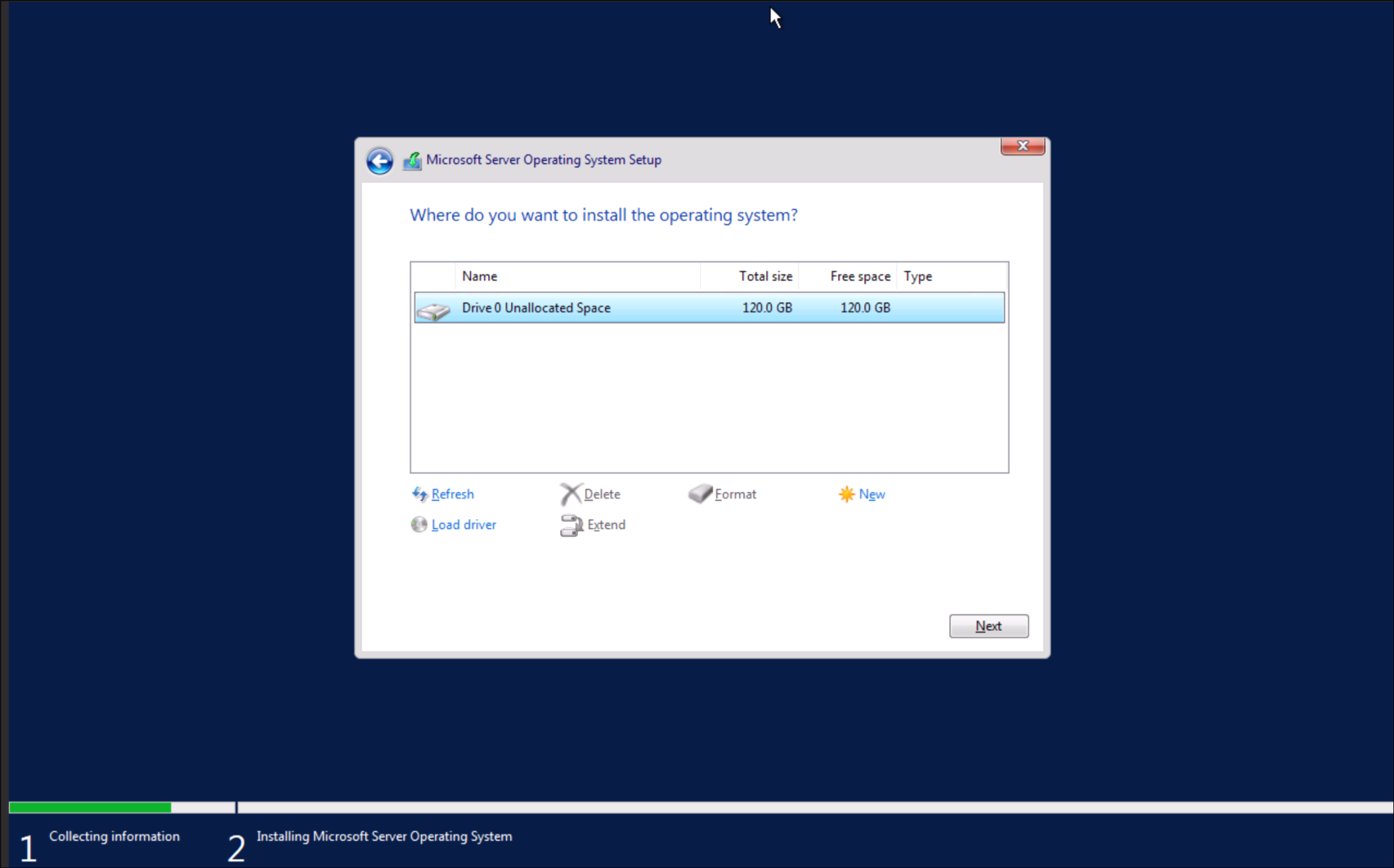
11. Follow through with the standard windows install. When you choose a disk make sure to choose Load Driver and then press OK. Any of the options should work. You can now pick the drive.
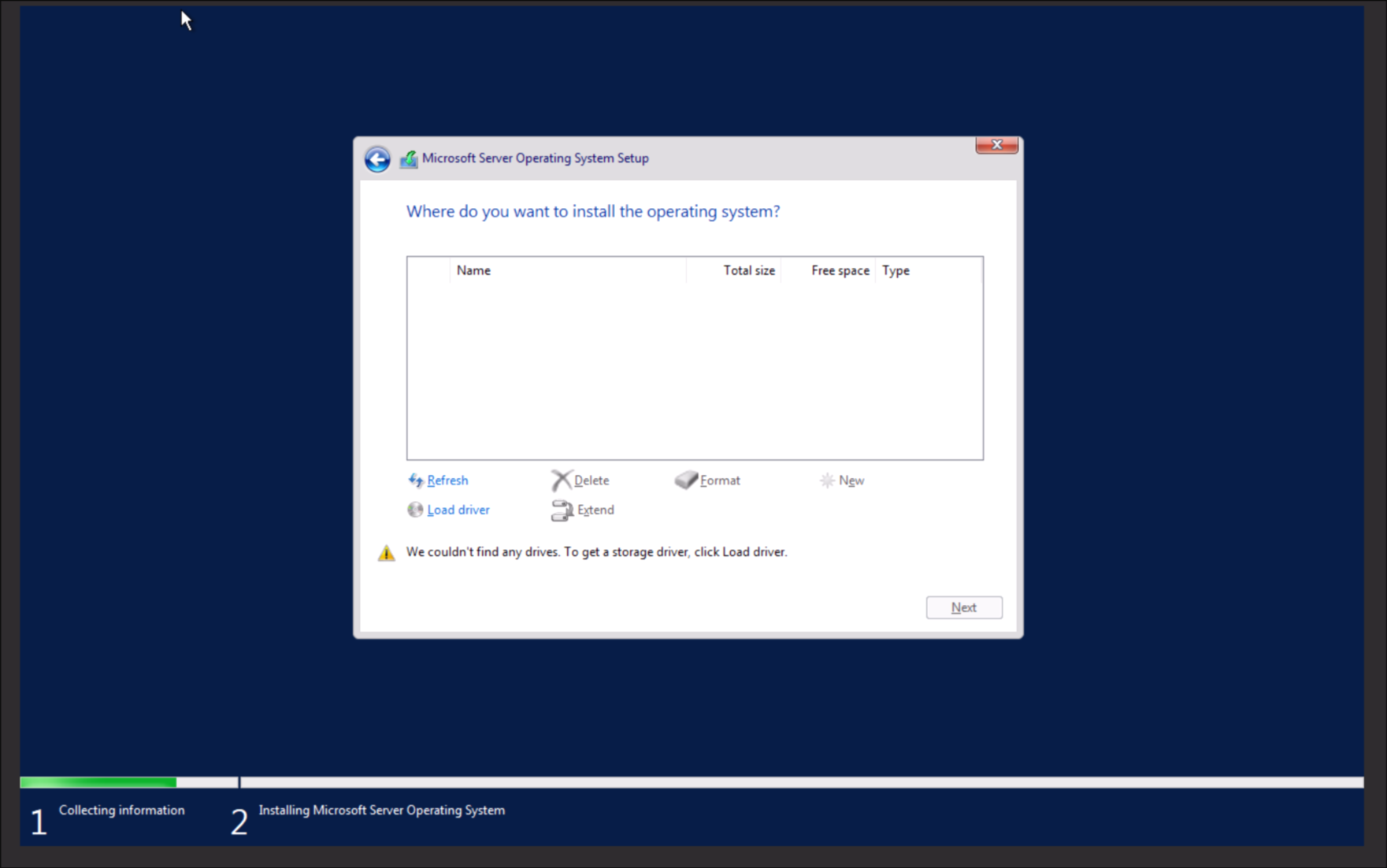
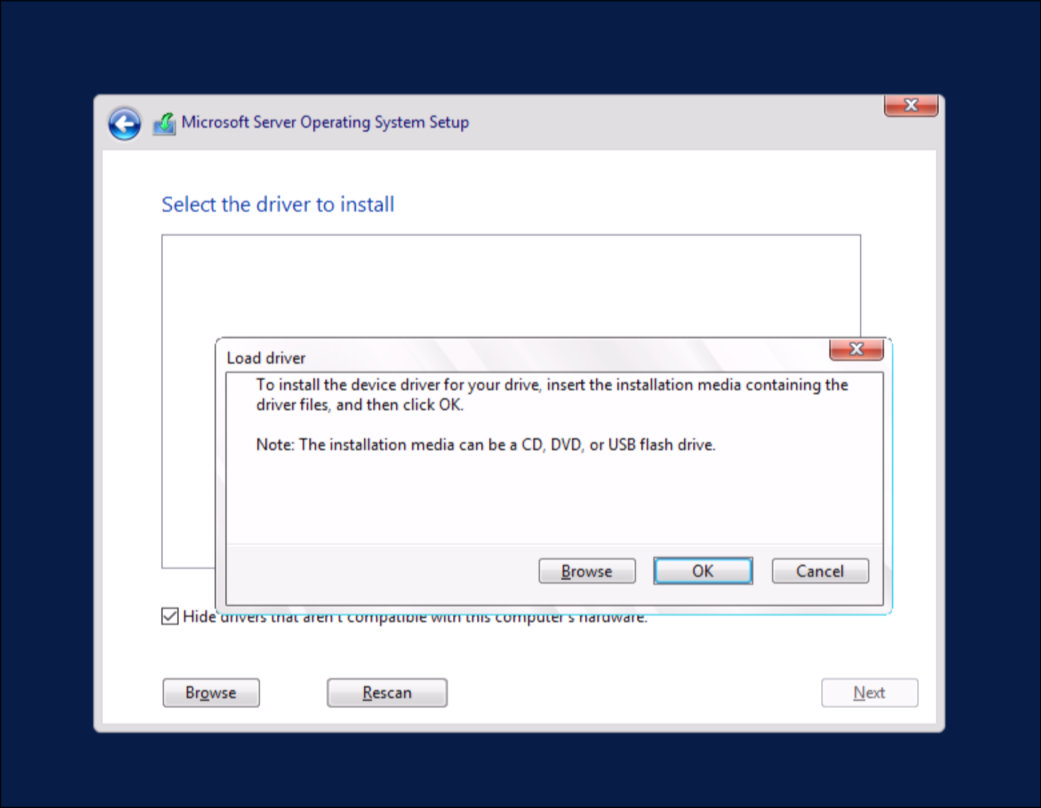
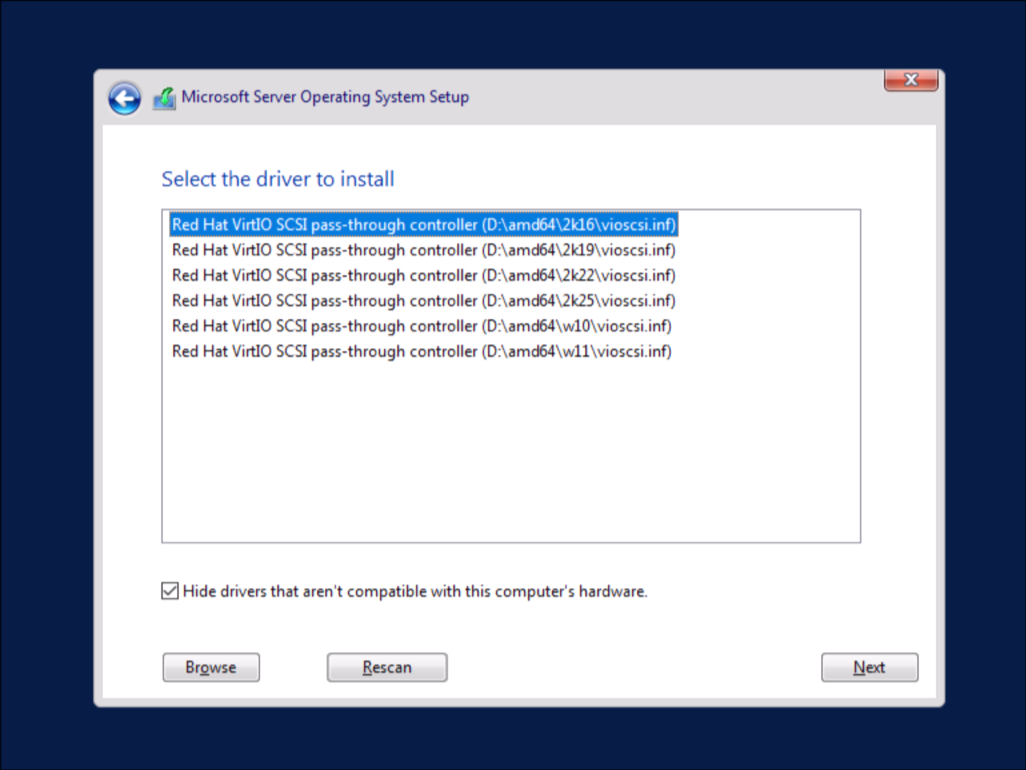
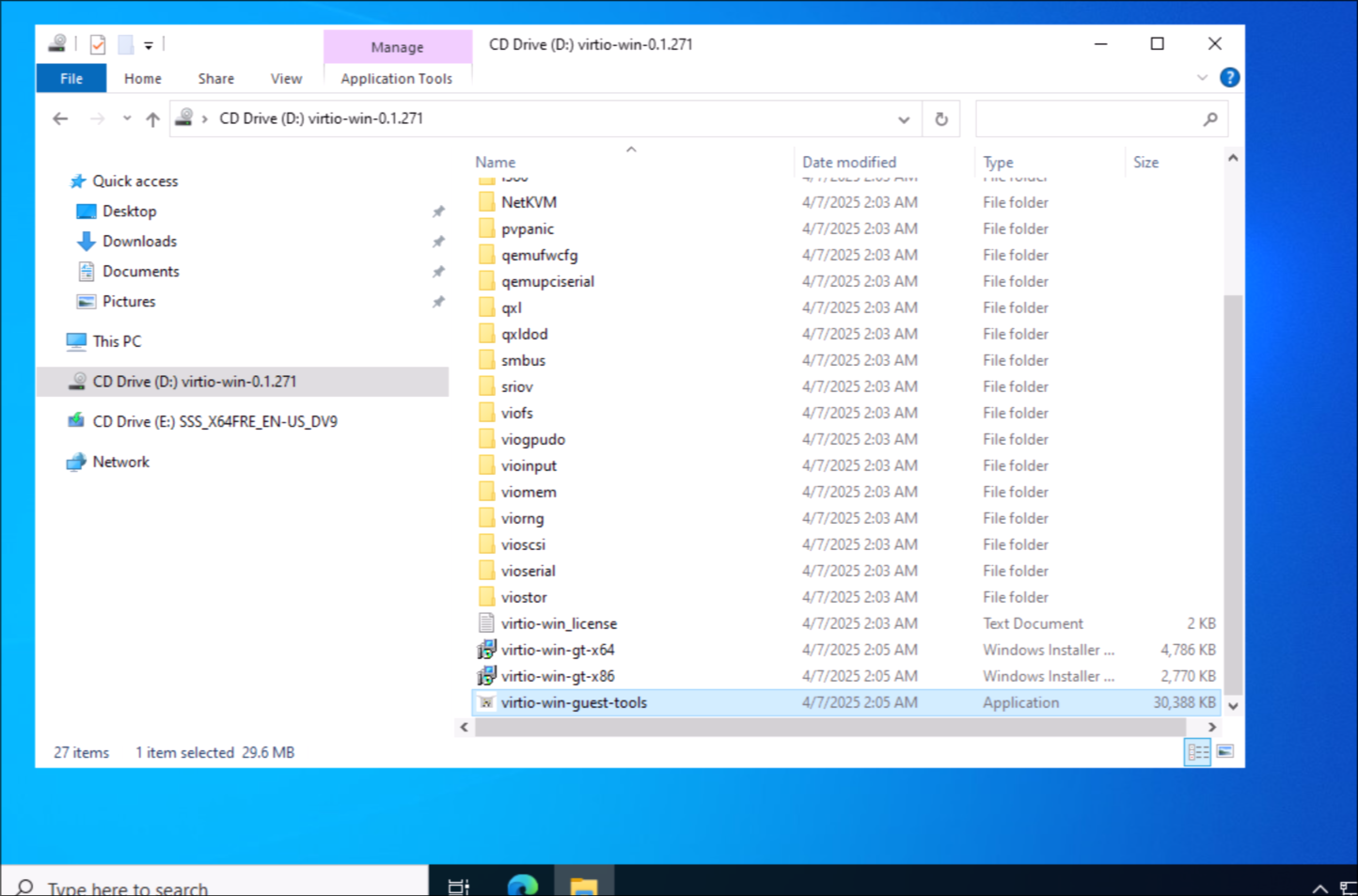
12. Continue with the windows install. After logging in go to the VirtIO Drive and run the virtio-win-guest-tools. Click next through all the dialogue. Restart after finishing