Bell Server
Overview
This document outlines the setup and management of the BellCommander service on the VM-BellServer-25. The documentation includes information about user accounts, scheduled tasks, scripts used for service management, data file locations, and system details.
If the Bells are not working:
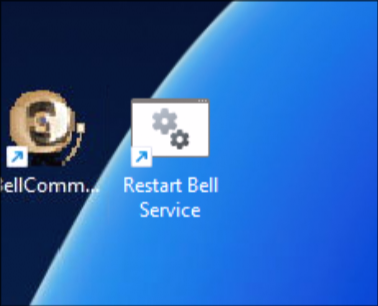
Restart Bell Service ( Try This First )
- There is an icon on the desktop called Restart Bell Service double click it to run it
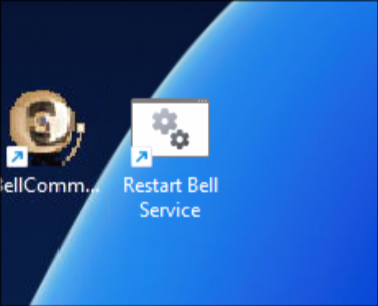
- Click Yes when it asks to run as admin
- The service should now be restarted. If the bells continue to not work Restart the Computer.
Further Troubleshooting:
Further Trouble shooting is at the End of this Document
Further Troubleshooting Link
System Details
- Type: Rockport Datacenter VM on the RPSD VM Host
- Name:
VM-BellServer-25 - Static IP Address:
10.4.0.49 - Accessible by RDP or Ncentral
Account Information
This is a domain account used to log in to the Bell-Computer where the BellCommander service is hosted.
- Group Membership:
Thebelluseraccount is a part of the local admin group. - Domain Account:
belluser - Password:
In IT glue under Domain Accounts
Service Management
BellCommanderApplicationService is an important service that must be running in order for the software to communicate with the VOIP extension.
The Executable is located at C:\Program Files (x86)\BellCommander\bcappservice.exe
A task has been set up to ensure that the BellCommanderApplicationService remains operational by restarting it daily.
- Task Schedule:
- Time: Daily at 7:00 AM
- Script Location:
C:\Program Files\Scripts\RestartBells - Functionality: This script is responsible for restarting the BellCommanderApplicationService.
Data File Locations
Directory:
- Path:
C:\Program Files (x86)\BellCommander - Contents: Houses all data files related to the BellCommander service. These files are critical for the operation of the BellComander application that contains data files like songs, sounds, and bell schedule databases.
Troubleshooting
Verify the Service is Running:
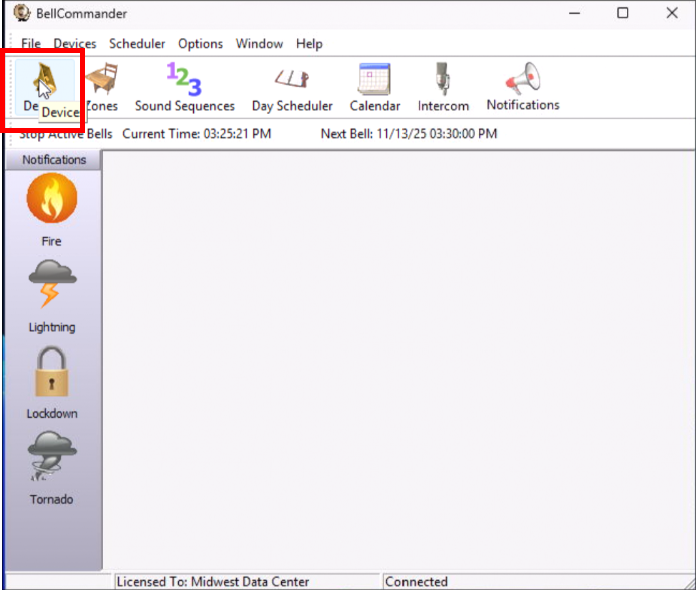
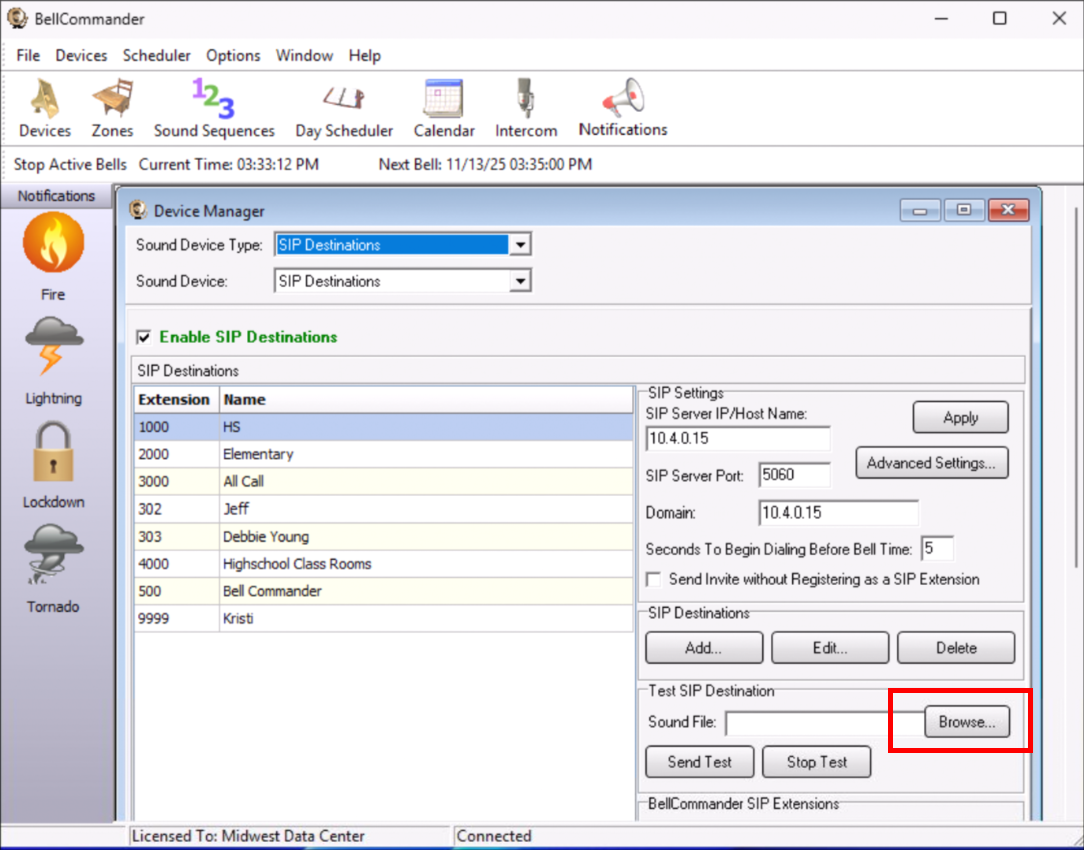
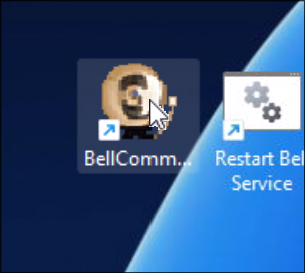
- Open the BellCommander Application
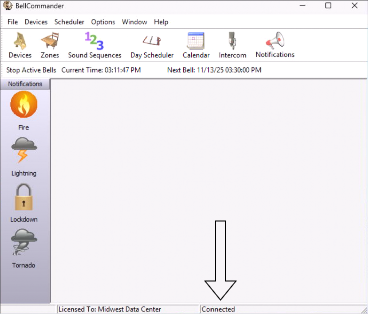
- Check that the Application is Connected the Service. If this Does not say Connected it means the service is Not Running and the Bells will Not Work. Run the script above to Restart the Bell Service.
- If after Running the script, it still does not connect, then Restart the Computer
Send a Test Bell:
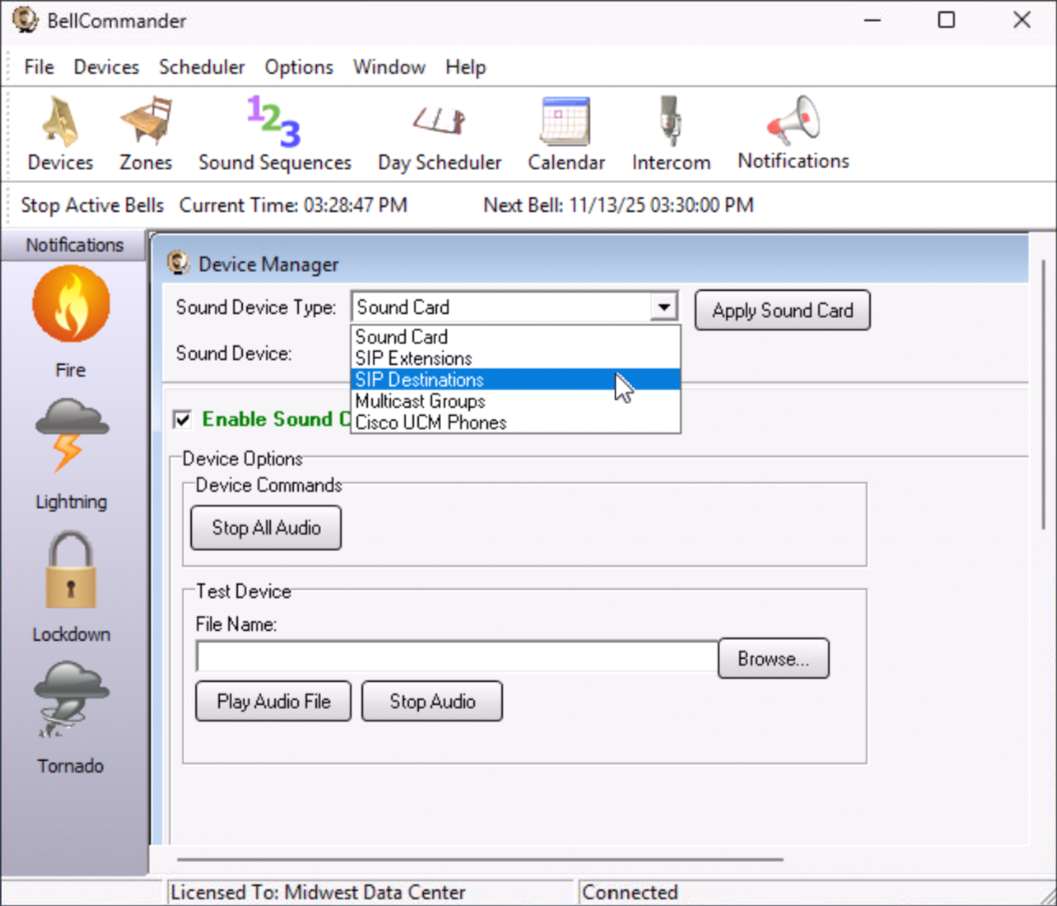
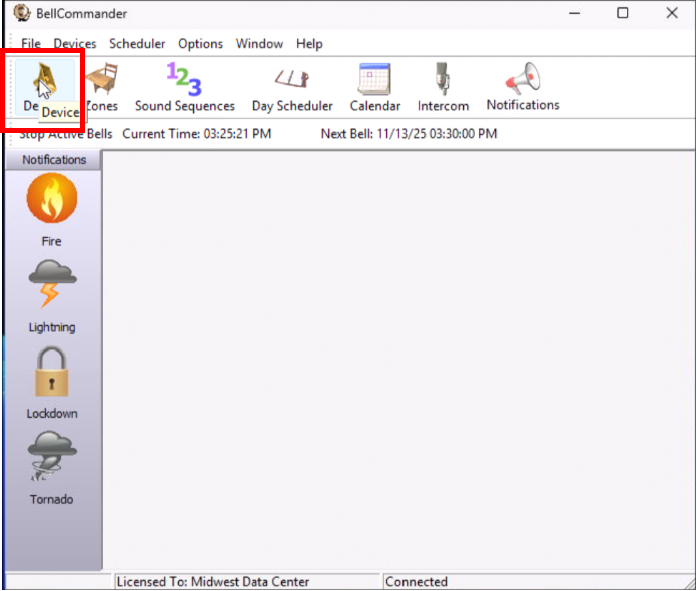
- Click Devices
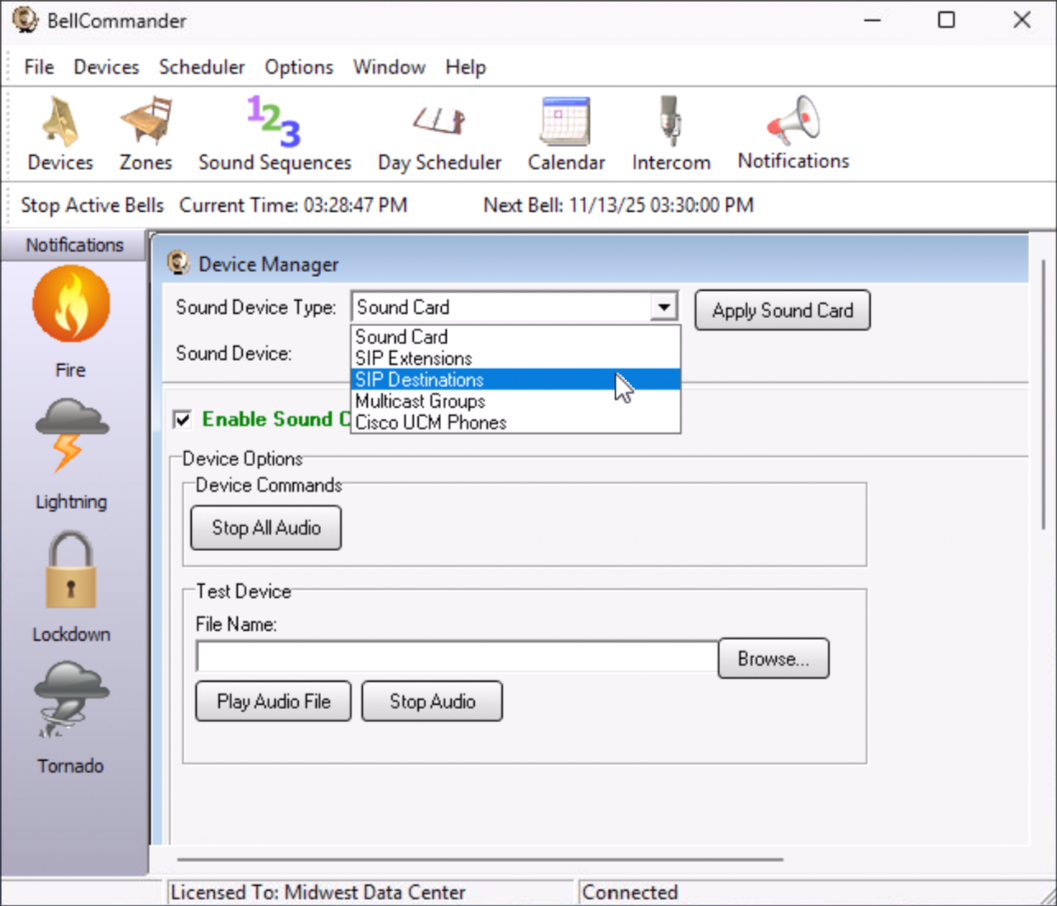
- Select from the Dropdown Sip Destinations
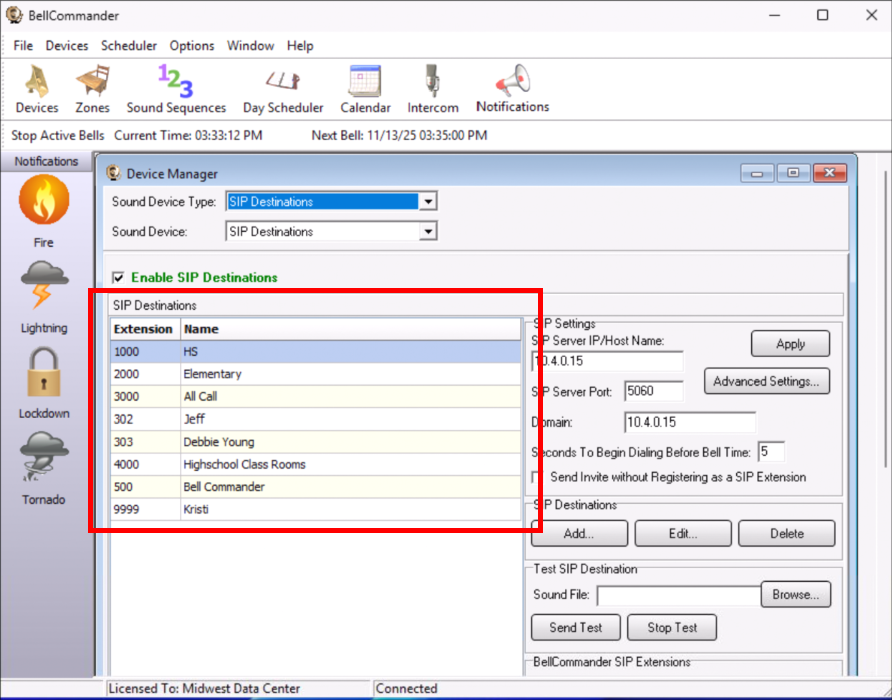
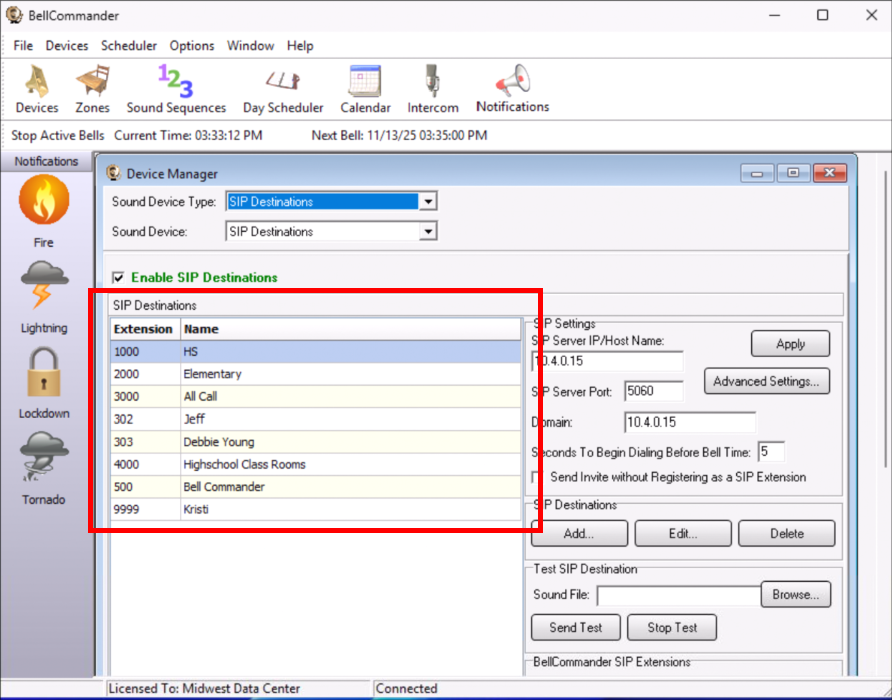
- Click a SIP Extension group to ring
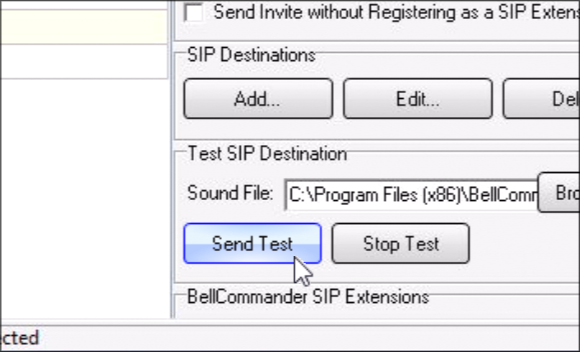
- Click Browse to pick the sound file to send to the bells
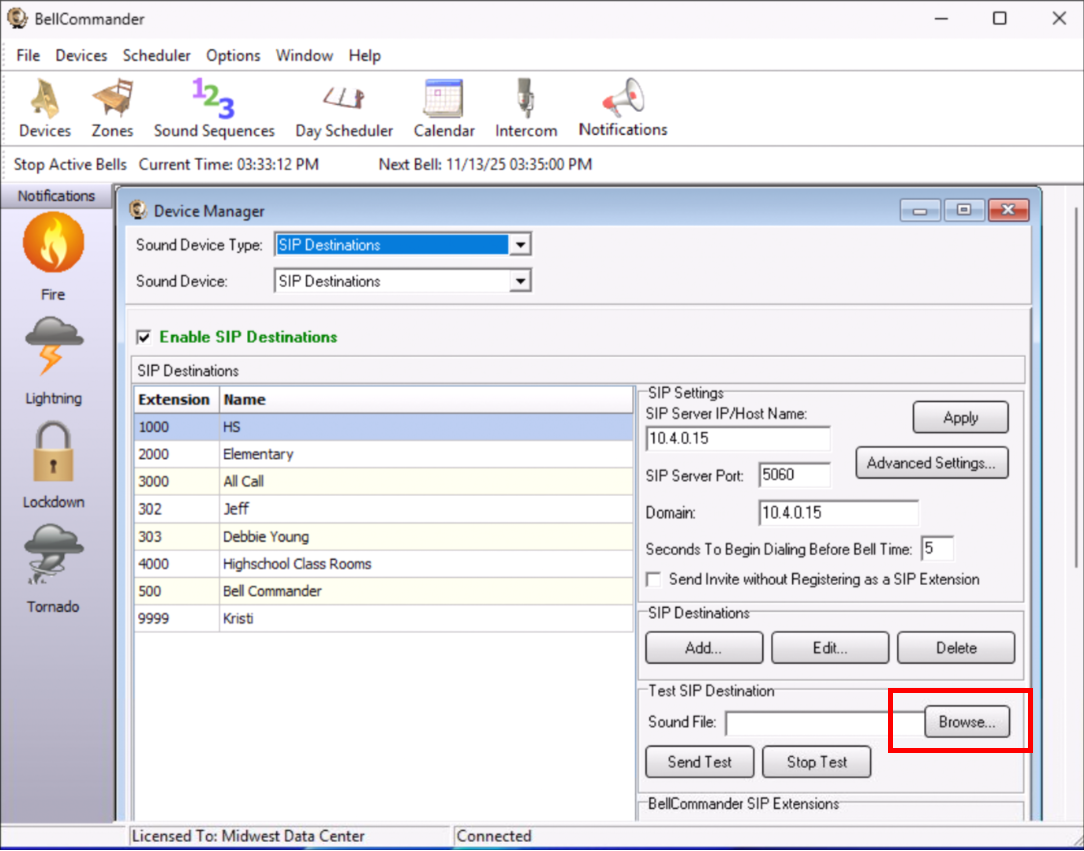
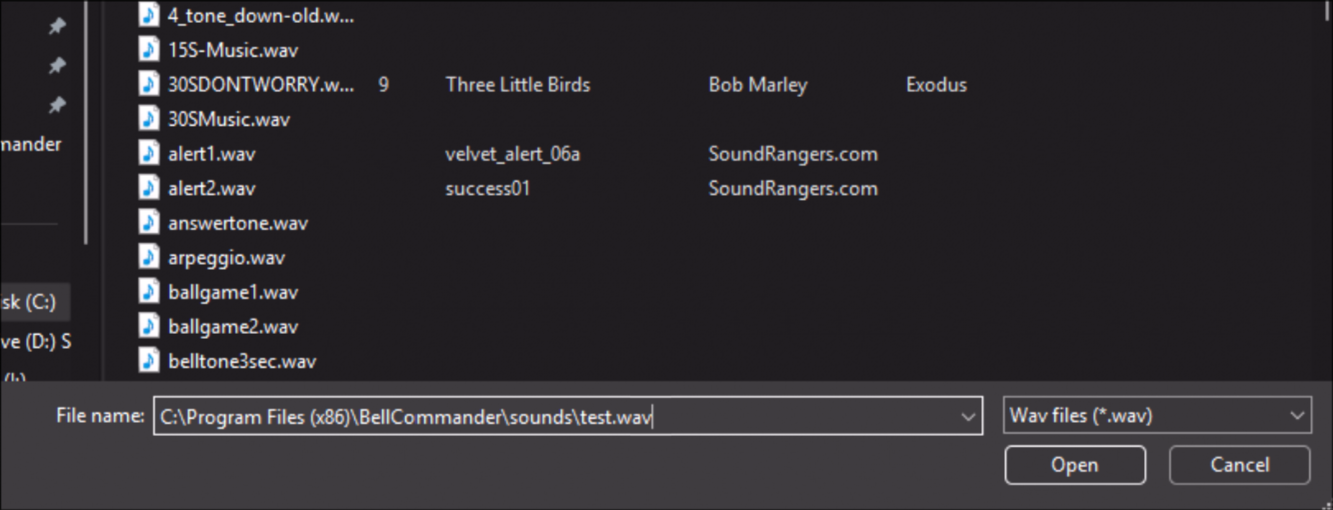
- Choose the test.wav file at:
C:\Program Files (x86)\BellCommander\sounds\test.wav
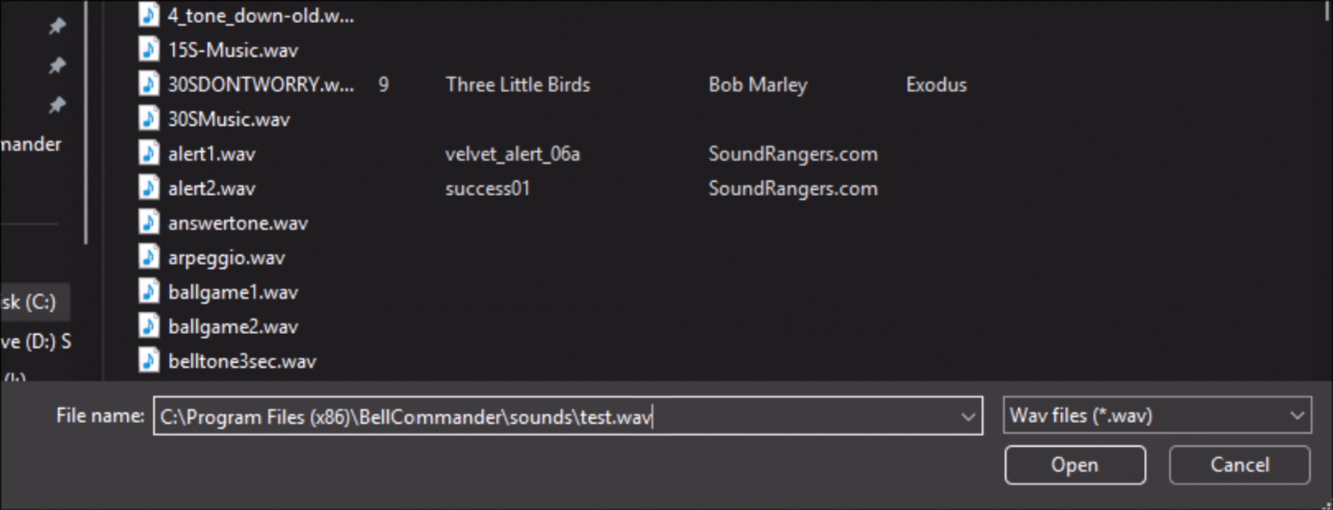
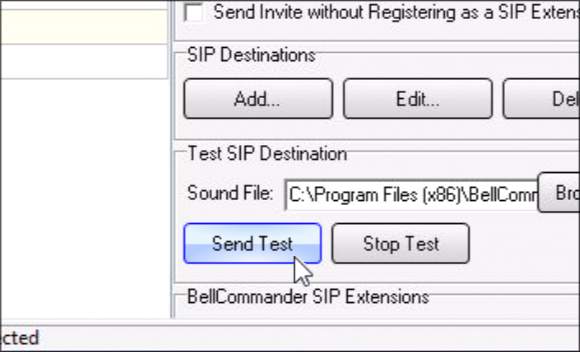
- Click Send Test to test the bells